Followers

shashinki.com - malaysia's online camera shop!
Showing posts with label Design. Show all posts

Monday, October 31, 2011

Fantastic Glowing Effect

Fantastic Glowing Effect
Here I’m going to show you one interesting fantastic glowing effect which you can use in your designs.
In the beginning you should create a new document with size about 500×500 pixels and fill it with black color.
Fantastic Glowing Effect 01
Then find some appropriate picture of hand or other item you want. You can search for some pictures on Google Images or can use mine. Open up the picture and copy it to our main canvas.
Fantastic Glowing Effect 02
Then use Magic Wand Tool to divide palm from the white background. Press Delete to clear selected area.
Fantastic Glowing Effect 03
Remove selection with Ctrl+D and begin creating the effect. Now, before we can start making glow parts of palm, I would like to note you that you have to get out the Brush Tool before and set up with the following settings:
Fantastic Glowing Effect 04
Also set foreground color to white. Create a new layer, after that select the Pen Tool (you need to make sure that you’re working with Paths instead of Shape Layers). Draw out your line using paths:
Fantastic Glowing Effect 05
Then right-click and select Stroke Path.
Fantastic Glowing Effect 06
A little dialog box will appear as in the screenshot. Choose Brush and make sure there is a tick next to Simulate Pressure. This is important as it will give your curve tapered ends which will make it rock!
Fantastic Glowing Effect 07
The picture use to look as mine:
Fantastic Glowing Effect 08
Next right click again and select Delete Path.
Fantastic Glowing Effect 09
Now, apply Outer Glow layer style to current layer.
Fantastic Glowing Effect 10
The effect should be next:
Fantastic Glowing Effect 11
Create a new line using the Pen Tool on the same way. Our task is to create the largest possible number of visible lines to make the silhouette clearer. In order not to create each line individually, and not spend too much time you can press Ctrl when finished to create a line, and click on the canvas. After that, you can create a new line regardless of the place where the previous line ended.
Fantastic Glowing Effect 12
After that select the Direct Selection Tool and make selection of all the lines. Then make the same things to create glowing lines as before.
Fantastic Glowing Effect 13
Ok and the last one step. Go to the layer with palm and set up fill opacity to 0% for this layer. Then apply Outer glow layer style to it.
Fantastic Glowing Effect 14
The result should be next:
Fantastic Glowing Effect 15
Great! Our work is done! Enjoy your own fantastic glowing effect!
Fantastic Glowing Effect 16
READ MORE- Fantastic Glowing Effect

Wednesday, December 22, 2010

THE BEST PHOTOSHOP TUTORIAL - OIL PAINTINGS

One interesting tutorial is how to turn photos into oil painting and that is what you will learn using Photoshop.

Final Image Preview

Turning Photos into Oil Paintings

Resources

MORE ABOUT THIS TUTORIAL CLIK HERE AT PHOTOSHOPSTAR.COM
READ MORE- THE BEST PHOTOSHOP TUTORIAL - OIL PAINTINGS

Wednesday, March 17, 2010

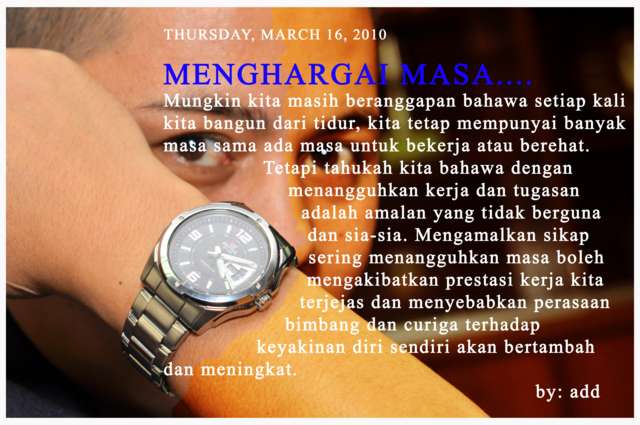
Hargailah Masa

READ MORE- Hargailah Masa

Ulasan panduan Jana Pendapatan Dengan Nuffnang

Rakan kita saudara Noorizam baru sahaja siap menulis satu panduan bagaimana untuk menjana pendapatan dengan Nuffnang dan saya antara orang yang terawal diberi peluang untuk membaca panduan ini. Rasanya semua dah tahu apa itu Nuffnang dah hampir kesemua anda sudah mendaftar akaun. Tetapi saya yakin hanya sebahagian dari anda yang benar-benar dapat menjana pendapatan dengannya.
Saya adalah antara orang yang tidak bernasib baik, setakat ini hanya menjana RM 1.20 sahaja pendapatan dari Nuffnang. Sebenarnya saya memang dah berputus asa dan terus membuang iklan Nuffnang dari blog saya. Tetapi selepas membaca tips-tips yang ditulis Noorizam di forumJomBincang, saya mengambil keputusan untuk memberi Nuffnang peluang kedua. Walau bagaimanapun saya masih tidak dapat menjana apa-apa pendapatan malah iklan pun jarang-jarang keluar. Setelah membaca panduan yang ditulis Noorizam barulah saya tahu apa sebabnya.
Di dalam ebook ni Noorizam telah menceritakan latar belakang Nuffnang dan juga panduan bagaimana untuk memohon, memilih iklan dan memasukkan iklan ke blog anda. Noorizam juga berkongsi beberapa tips yang berkesan berdasarkan pengalaman beliau sendiri.
Ebook ini akan dilancarkan pada hari Selasa 24hb Jun dan yang paling menarik sekali, ianya akan diberikan secara percuma. Ya, PERCUMA, FREE, GRATIS. Apa yang anda perlu lakukan ialah pergi ke laman web Noorizam dan masukkan nama dan email anda di ruangan yang disediakan sebagaimana gambar di bawah
nuffnangads Ulasan panduan Jana Pendapatan Dengan Nuffnang
Selamat membaca.
READ MORE- Ulasan panduan Jana Pendapatan Dengan Nuffnang

Tuesday, March 16, 2010

pratonton peti peminat

Peminat Mohd Johari Rosli
Sedikit Biodata saya... 
Nama penuh : Mohd Johari B. Rosli
Tahun lahir : 1980
Asal : Sg. Petani, Kedah
Pendidikan : Sek. Menengah...

READ MORE- pratonton peti peminat

Design a Horror Looking, Extreme Grungy Style Poster in Photoshop

READ MORE- Design a Horror Looking, Extreme Grungy Style Poster in Photoshop

Saturday, March 13, 2010

Using Creative Art in Valentine Greeting Card

Using Creative Art in Valentine Greeting Card
The long-awaited holiday coming… This is Valentine day. This holiday so important almost for each of us. That’s why I decided to prepare for you one more interesting Photoshop tutorial about how to make Valentine greeting card by using creative art.

Ready to start? Ok, let’s go! In the beginning I created a new document and filled it with black color.
Using Creative Art in Valentine Greeting Card 01
Then I would like to add decorative elements to the background. You can find some appropriate picture on stock photo websites and feel free to use my picture. Open up it and use the Polygonal Lasso Tool to separate picture from the background.
Using Creative Art in Valentine Greeting Card 02
Press Ctrl+C to copy selected area, then go back to our main canvas and press Ctrl+V to paste coped part of image on it. Move it a little bit left as shown on my picture below.
Using Creative Art in Valentine Greeting Card 03
Press Ctrl+J to duplicate current layer with flowers and hide the copy (click on the eye, which indicates layer visibility). Go to lower layer and set opacity up to 20% for it. Then create a new one layer above and fill it with pink to orange gradient, using colors of #ff5860 and #f6e69e. Change layer mode to Screen for this layer.
Using Creative Art in Valentine Greeting Card 04
Go back to the hidden copy of layer and make it visible again. After that move it like on my print screen which you can see below.
Using Creative Art in Valentine Greeting Card 05
Apply Drop Shadow and Outer Glow layer styles to this layer.
Using Creative Art in Valentine Greeting Card 06
Using Creative Art in Valentine Greeting Card 07
See the difference now?
Using Creative Art in Valentine Greeting Card 08
Ok, now duplicate this layer with Ctrl+J and move copy to the right lower corner.
Using Creative Art in Valentine Greeting Card 09
Move to the next step. I would like to bring some heart shapes to the background. How we can do this? I’ll show you one way. Create a new one document sized 50×50 pixels. Then select the Custom Shape Tool and one of the standard shapes from Photoshop gallery. Add this shape to our new document. It doesn’t matter which color it will be.
Using Creative Art in Valentine Greeting Card 10
After that use Edit > Define Brush Preset to save this shape as brush. Ok, now we have ready heart brush. But before applying it we should set up some settings for it. Select the Brush Tool and our new brush. Then click the button ‘Toggle the Brushes palette’ on the Options Bar to open brush presets window or by choosing Window > Brushes. Here we can see a couple of presets. Now, set up the following presets for our selected brush:
Using Creative Art in Valentine Greeting Card 11
Using Creative Art in Valentine Greeting Card 12
Using Creative Art in Valentine Greeting Card 13
Using Creative Art in Valentine Greeting Card 14
Ok, when we are done with settings, select the white color as foreground color and add a few strokes with hearts.
Using Creative Art in Valentine Greeting Card 15
Ok, move to the next step. Now we need to bring our greeting card some creative art looking and should stylize it. For this effect merge all layers in one by pressing Ctrl+Shift+E. Duplicate new layer with Ctrl+J and apply Filter > Distort > Ocean Ripple for the new layer with similar settings to these:
Using Creative Art in Valentine Greeting Card 16
After that mess with the layer mode & opacity/fill. I tried Sift Light with opacity of 60%.
Using Creative Art in Valentine Greeting Card 17
Then we should add greeting text or something like this. Get out the Horizontal Type Tool and write out some text. Actually, I decided to put some poem about love in my greeting card. So, the first line will be title of the poem. Use the color of #5b2a0c for this text line.
Using Creative Art in Valentine Greeting Card 18
In the above image I’ve used a font called Garamond Premier Pro, which is one of standard Windows fonts. Ok, then add the poem with the same color and the same font. But use smaller size font for this text layer.
Using Creative Art in Valentine Greeting Card 19
Looks good, isn’t it? Merge all layers in one again and apply Filter > Texture > Texturizer with next presets:
Using Creative Art in Valentine Greeting Card 20
Now we have effect like this:
Using Creative Art in Valentine Greeting Card 21
After that use the Sharpen Tool to add some sharpness to our canvas.
Using Creative Art in Valentine Greeting Card 22
Ok, on this step we are done! Now we have great looking Valentine Greeting card.
Using Creative Art in Valentine Greeting Card 23
I congratulate all on the Valentine day! Love each other and try to save your love!
READ MORE- Using Creative Art in Valentine Greeting Card

Professional Designed Pseudo Vector Flyer for Night Club

Professional Designed Pseudo Vector Flyer for Night Club
In this tutorial I’m going to show you how to design professional pseudo vector flyer using just Photoshop tools.

Create a new document with size of 1000×500 pixels and 72dpi of resolution. Fill this canvas with black color.
Professional Designed Pseudo Vector Flyer for Night Club 01
After that start with creating background decorations. Create a new layer and make rectangular selection with Rectangular Marquee Tool, then fill this selection with white color.
Professional Designed Pseudo Vector Flyer for Night Club 02
Remove selection with Ctrl+D and duplicate current layer with Ctrl+J a few times. Arrange other shapes as was shown on my picture below.
Professional Designed Pseudo Vector Flyer for Night Club 03
Merge all white shapes in one layer and apply Inner Glow and Gradient Overlay layer styles to the new layer.
Professional Designed Pseudo Vector Flyer for Night Club 04
Professional Designed Pseudo Vector Flyer for Night Club 05
The result should be next:
Professional Designed Pseudo Vector Flyer for Night Club 06
Ok, move to the next step. Now I would like to add some dancing girls’ silhouettes. In this way you may need these brushes. Make current layer selection with Select > Load Selection, after that create a new layer and add a few different prints of silhouettes with Brush Tool.
Professional Designed Pseudo Vector Flyer for Night Club 07
Create a new one layer above and make a few prints more a little bit smaller sizes. Set layer opacity to 50% up for this layer.
Professional Designed Pseudo Vector Flyer for Night Club 08
Remove selection with Ctrl+D. Then get out the Horizontal Type Tool and add some text with black color.
Professional Designed Pseudo Vector Flyer for Night Club 09
In the above image I’ve used a font called Venus Rising, which you can download from here. Copy this text layer a few times also and arrange copies like on my picture below.
Professional Designed Pseudo Vector Flyer for Night Club 10
Merge all layers together excepting background and apply Edit > Transform > Distort to transform the picture.
Professional Designed Pseudo Vector Flyer for Night Club 11
Then apply Edit > Transform > Warp, it will be better to add a couple of guide lines to adjust the transformation accurately.
Professional Designed Pseudo Vector Flyer for Night Club 12
We got an interesting perspective. Move to the next difficult step. We need to reflect glow from this picture on the floor. Duplicate current layer with Ctrl+J, then flip vertical copied layer with Edit > Transform > Flip Vertical and omit the image down a bit. Don’t press ‘Enter’ or ‘Apply’ button until u use two more transformations. Use Edit > Transform > Skew and Edit > Transform > Distort to get the reflection like on my picture below. After that press ‘Enter’ or ‘Apply’ button. Be attentively, because it is difficult step. It may be complicated for beginners in Photoshop.
Professional Designed Pseudo Vector Flyer for Night Club 13
Then apply Quick Mask Mode with gradient as below:
Professional Designed Pseudo Vector Flyer for Night Club 14
Then go back to Standard Mode. Now we have some selected area. Press Delete to clear image into the area.
Professional Designed Pseudo Vector Flyer for Night Club 15
After that remove selection with Ctrl+D. Now, apply Filter > Blur > Motion Blur with next parameters:
Professional Designed Pseudo Vector Flyer for Night Club 16
Reduce opacity to 50% for current layer to get the next result.
Professional Designed Pseudo Vector Flyer for Night Club 17
Ok, we are done with background. Move to the next step. I would like to add a glow from the stroboscope. Select the Brush Tool and a hard round brush about 19 pixels. Then click the button ‘Toggle the Brushes palette’ on the Options Bar to open brush presets window or by choosing Window > Brushes. Here we can see a couple of presets. Now, set up the following presets for current brush:
Professional Designed Pseudo Vector Flyer for Night Club 18
Professional Designed Pseudo Vector Flyer for Night Club 19
Professional Designed Pseudo Vector Flyer for Night Club 20
Professional Designed Pseudo Vector Flyer for Night Club 21
Create a new layer and make a few strokes with white color.
Professional Designed Pseudo Vector Flyer for Night Club 22
Then apply Inner Glow and Gradient Overlay layer styles to this layer.
Professional Designed Pseudo Vector Flyer for Night Club 23
Professional Designed Pseudo Vector Flyer for Night Club 24
See the result below:
Professional Designed Pseudo Vector Flyer for Night Club 25
After that I would like to add one bigger silhouette of the girl. Get out the Brush Tool again and make the print using one of brushes with color of #232b0e on the new layer.
Professional Designed Pseudo Vector Flyer for Night Club 26
And the last one thing that we need to add is advertising text. Use the Horizontal Type Tool and write out some text which you can see on the picture below.
Professional Designed Pseudo Vector Flyer for Night Club 27
In the above image I’ve used a font called Vera Crouz, which you can download from here. Add one more text line to finish off the tutorial.
Professional Designed Pseudo Vector Flyer for Night Club 28
We are done for this tutorial! I hope you get the result that you expected. Do not be afraid to experiment and you will get excellent results!
Professional Designed Pseudo Vector Flyer for Night Club 29
READ MORE- Professional Designed Pseudo Vector Flyer for Night Club
Related Posts Plugin for WordPress, Blogger...

PING BEST